

Remember the conversation
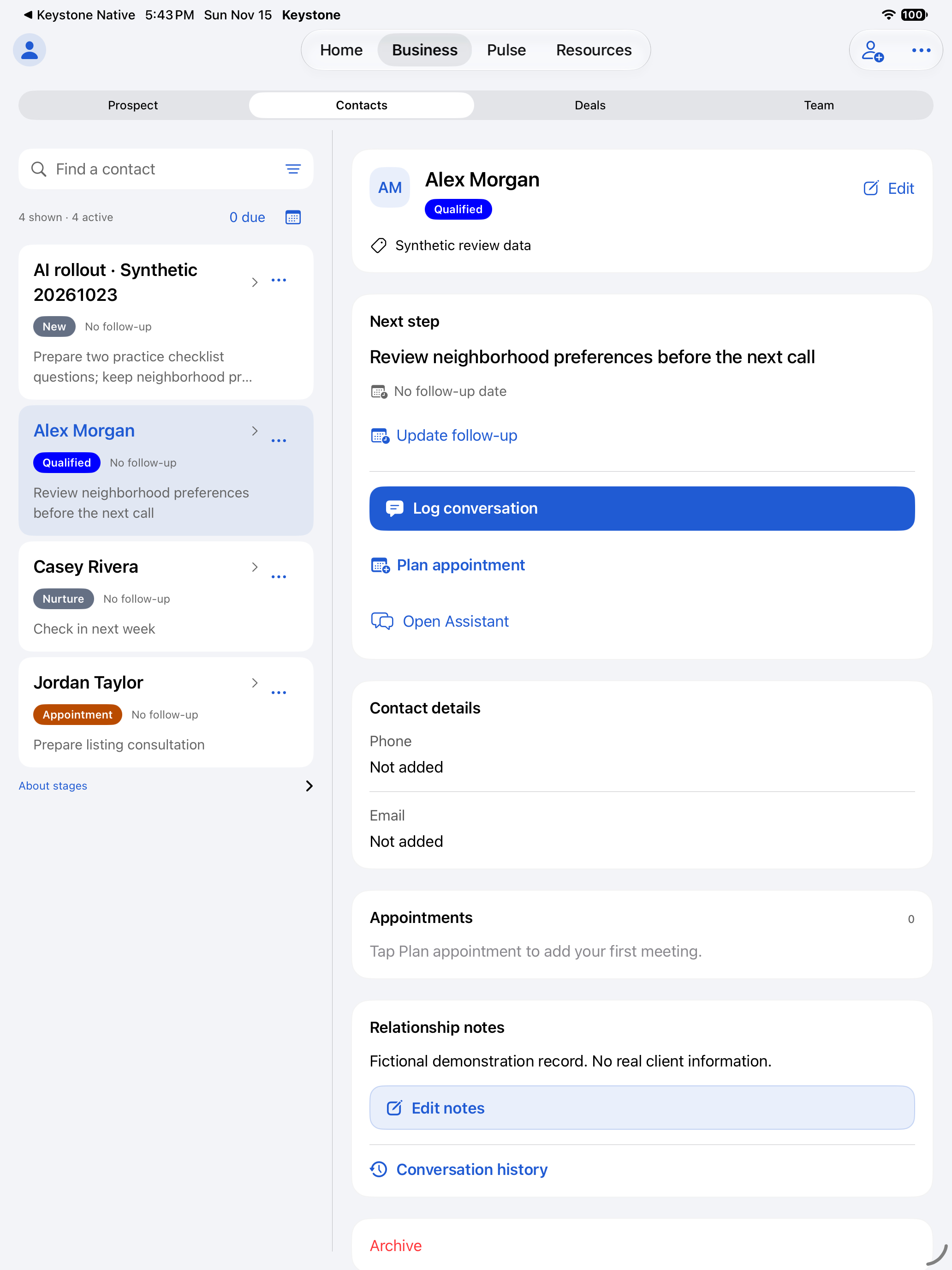
Save notes, choose the next action and set a follow-up date.
See who needs your attention. Keep their contact details, next steps and shared work together.
Real app recording. Fictional demo contact.
Save notes, choose the next action and set a follow-up date.
Keep each appointment with its contact, location and preparation notes.
Log your activity and track your goals in Business Pulse.
A real estate professional still needs to review the draft guides and lessons.
Explore the agent workspace →Give each lead an owner, track training and spot overdue work. Agents update only the assignment details their role allows.
Explore brokerage featuresYour personal contacts, private notes, income and journals stay private when you join a team.
Actual app recording. Fictional team.
Keep your day moving on your computer, tablet or phone. Sign in to open your saved work.
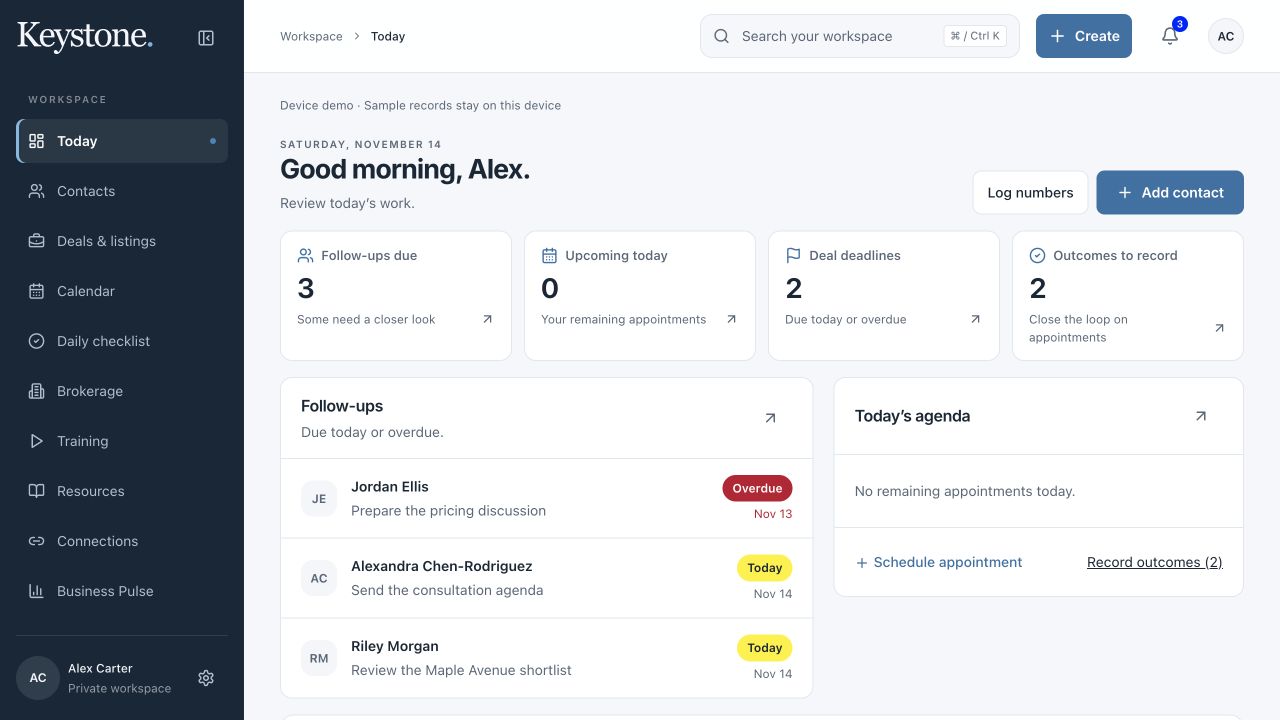
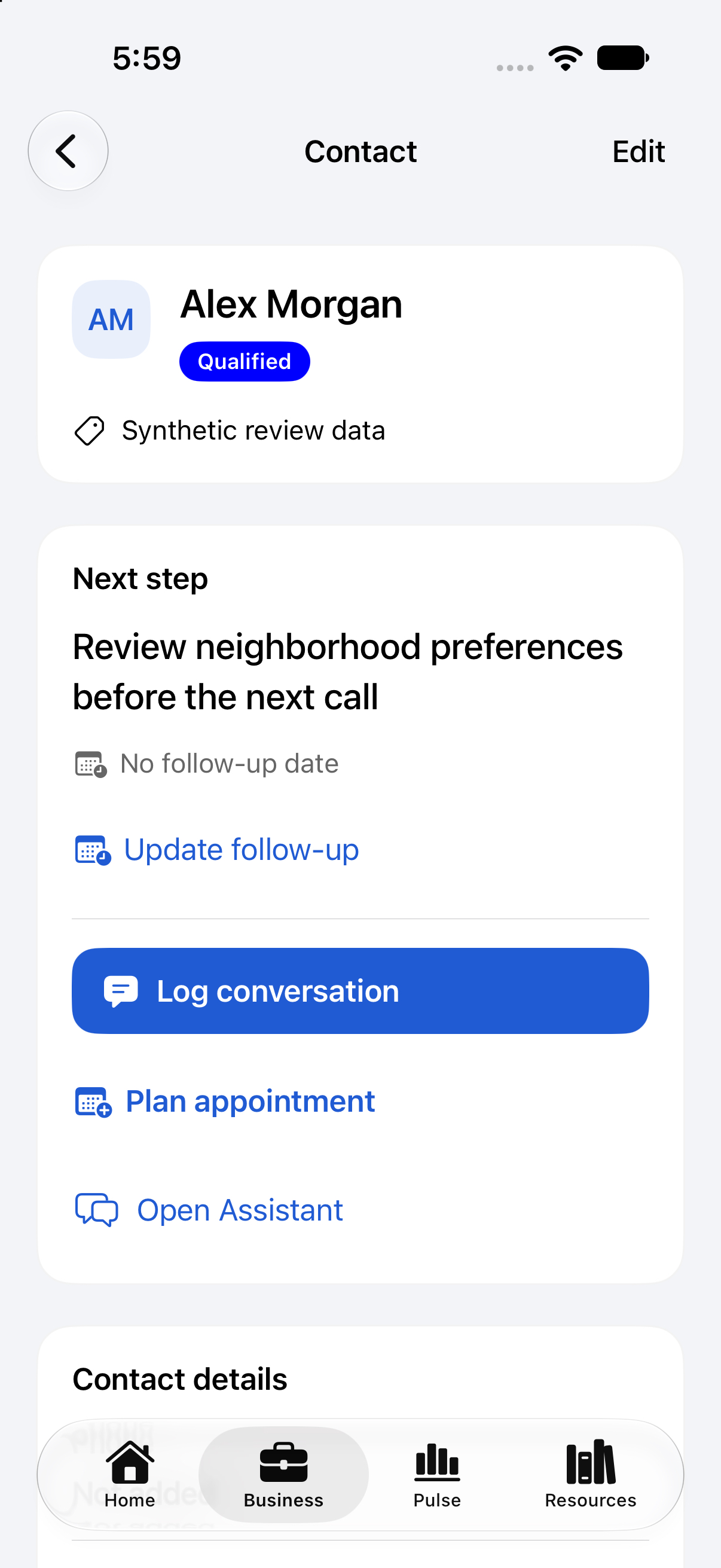
Our iPhone, iPad and Mac apps are under Apple review. Android and Windows apps are in preparation.
Download links will appear after release.
Add contacts, save conversation notes and choose a next step. Set a follow-up date, import a CSV file or export selected contacts.
Review contacts before importing. CSV imports do not merge existing records.
Link appointments to contacts. Keep the time, place and preparation notes together.
Log activity, set goals and track habits in Business Pulse.
A downloaded calendar snapshot does not sync changes or send invitations.
Track buyer deals and seller listings by client, property and stage. Add the next action, follow-up date and expected closing date.
Use expected commission for planning. It does not count as received income. MLS sync is not available.
Prepare a briefing or draft a follow-up. Organize notes for review or summarize a current, approved Library document.
AI needs your consent. Review each result. It cannot send messages or change contacts.
Create a team or ask to join one. Owners approve members. Owners and Managers assign leads and training, then review team progress.
Agents update the assignment details their role allows.
See team roles ↓Owners and Managers publish documents and links in folders and manage their versions. Team members open published resources.
Agents cannot open archived resources. Unpublished drafts stay with their author on that device.
Choose the details clients can see on your business card. Publish card changes separately from your private profile.
Set your licensing regions and find official resources.
Selecting a region does not verify your license or replace local advice.
Save account records to the cloud and open them on another device. Unfinished drafts stay on the device where you started them.
Export account data or verify your identity to request deletion in Account management.
Save your drafts before clearing browser or device data. Read about cloud saves and drafts.
Yes. Use your personal workspace on your own. Join a team when you need to share assignments and resources.
Open the web app, create your account and review Core pricing. With active Core access, add your first contact and set a follow-up date.
Open the web app on your computer, tablet or phone. Sign in to the same account to open saved records. We’re preparing iPhone, iPad, Mac, Windows and Android apps for release. Public downloads are not available yet.
We offer Core to US-based customers. The app uses English.
Import a CSV file in Contacts. Review the entries before saving. CSV imports do not merge existing records, so check for duplicates first.
Status labels show a contact’s stage or when work is due. Use the label text and these examples to plan your next steps.
Connect Google Calendar in the web app’s Connections page. Import contacts from a CSV file. Signing in with Google or Microsoft does not connect your calendar, contacts or email.
You send your own follow-ups through your email provider. If your account has AI access, Ask Keystone can prepare a draft for you to review. It does not send messages.
MLS integration is coming soon. Keep using your existing MLS for listings and MLS updates.
If your account has AI access, prepare briefings, draft follow-ups, organize notes and summarize approved Library documents. Allow AI sharing before using these tools, then review each result. AI does not send messages or change contacts. Core does not include AI access.
Use Training to practice conversations and plan next steps. A real estate professional still needs to review the draft guides and lessons. Follow your brokerage’s guidance and official licensing resources.
Core costs $29 USD per person each month. It includes contacts, follow-ups, appointments and daily activity. It renews monthly until you cancel. Applicable taxes appear before purchase. Core does not include AI or provider sync. Review pricing.
Stripe handles checkout and billing through its hosted pages. Keystone does not store full payment-card numbers or security codes. Never send card details in a support message.
The current Core offer has no free trial or annual plan. Review the monthly price and billing terms before you subscribe.
We’re preparing paid brokerage coverage. The planned offer costs $249 USD per month for 10 members, plus $25 USD per month for each additional member. Covered Owners and Managers count toward that total. Brokerage plans are not available to purchase yet.
Open Plans & pricing in your web account, choose Manage billing and cancel in Stripe’s portal. Cancellation stops future renewals. Your paid access continues through the current paid period. Canceling does not delete your records. Read the billing policy.
Email [email protected] within seven days of your first Core subscription payment to request a full refund. This first-payment window does not apply to renewals or resubscriptions. An eligible full refund ends paid editing and cancels the subscription immediately. Later payments have no automatic partial-month refund. See the billing policy for billing errors, required refunds and other details.
You can still read and export saved workspace records. You need active Core access or eligible brokerage coverage to edit. Contact support if your payment succeeded but access has not updated. Do not buy another subscription to fix an access problem.
Joining a team does not share your personal contacts, private notes, income or journals. Owners and Managers see the shared work their role allows. Read the privacy policy for the data we handle and the providers we use.
Keystone saves your account records in the cloud. Sign in to the same account to open them on another device. Unsaved drafts stay in the app or browser where you started them. You need an internet connection to confirm a save.
Keep the form open and reconnect. Use Retry save if Keystone cannot confirm your changes. Review newer saved changes before retrying a conflicting draft. Save your drafts before you clear browser or device data.
Export saved contacts, appointments and activity from Account management. Download Library files separately. Exports exclude unsaved drafts, billing history, provider logs and backups.
No. Choose which details to publish on your business card. Publishing a card is separate from editing your private profile or joining a brokerage. Review the card before sharing its link.
Request deletion in Account management and verify your identity. Deleting your account does not cancel billing or issue a refund. Manage your subscription separately in your web account. The privacy policy explains retention exceptions. Contact support if you cannot sign in.
Ask to join a team. Owners approve members and assign roles. Owners and Managers assign shared leads and training. Agents update the assignment details their role allows. See team roles.
Owners and Managers publish documents and links in team folders. Active members can open published resources. Owners and Managers manage versions and archives. Unpublished drafts stay with their author on that device.
Email [email protected] with your device, browser or app version, and what happened. Leave out passwords, reset links, card details and client records. The support guide covers sign-in, billing and save issues.
Try another word or reset the filters.